CV Sprite Tool — User Manual ColecoVision Edition
A web-based pixel art editor for creating 8×8 and 16×16 ColecoVision sprites with multi-layer support and animation.
Introduction
The CV Sprite Tool is a standalone, browser-based sprite editor tailored for the ColecoVision home computer. It works within the hardware constraints of the TMS9918A video processor: a 16-colour palette, 8×8 and 16×16 pixel sprites, and a two-layer colour system that mirrors how the ColecoVision renders sprites in hardware.
You can draw pixel art, create multi-frame animations, and export directly to CVBasic source code, Assembly (ASM) data blocks, or a portable JSON project file — all without leaving your browser.
Interface Overview
The tool is arranged top-to-bottom in a single scrollable page. The numbered zones below correspond to the callouts in the diagram.
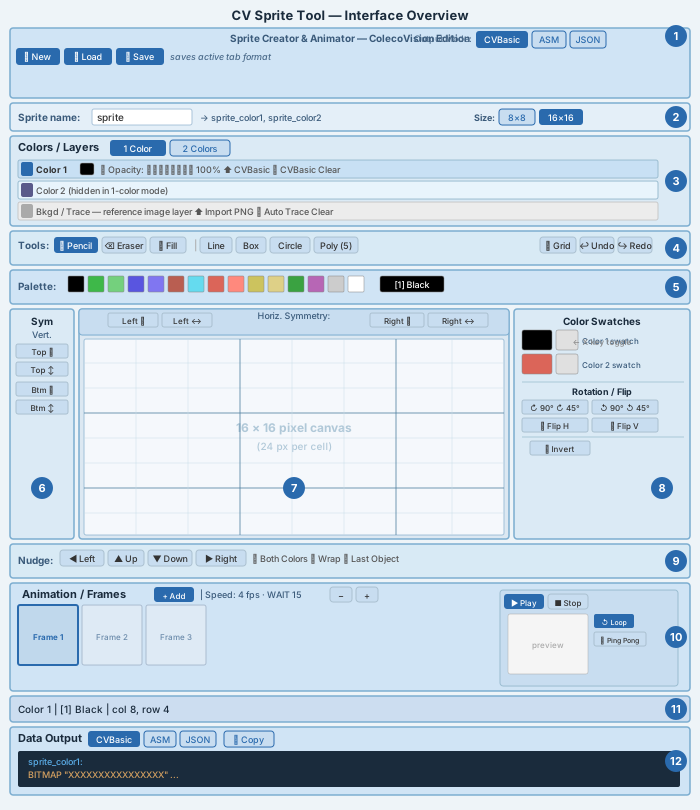
| # | Zone | Purpose |
|---|---|---|
| ① | Top Bar | New, Load, Save project buttons. Output Mode selector (CVBasic / ASM / JSON). |
| ② | Sprite Name & Size | Name prefix used in exported code. Preview shows how labels will appear. Size toggle (8×8 / 16×16) is also on this bar. |
| ③ | Colors / Layers | Switch between 1-color and 2-color mode. Per-layer controls (color, visibility, opacity, import/export, clear). Trace layer for reference images. |
| ④ | Drawing Tools | Pencil, Eraser, Fill, and shape tools. Grid toggle, Undo, Redo. |
| ⑤ | Palette | 15 clickable TMS9918A colour swatches. Active colour shown on the right. |
| ⑥ | Vertical Symmetry | Top / Bottom copy and mirror modes. One active at a time. |
| ⑦ | Canvas | 16×16 drawing grid. Horizontal symmetry bar sits above it. |
| ⑧ | Rotation / Flip | Colour swatches (click to switch active layer, pencil icon to edit). Rotate 90°/45°, Flip H/V, Invert. |
| ⑨ | Nudge Bar | Shift pixels one step in any direction with Wrap or Clip behaviour. |
| ⑩ | Animation / Frames | Frame strip, playback controls, speed, animation preview. |
| ⑪ | Status Bar | Active layer, active colour, and cursor position. |
| ⑫ | Output Panel | Live-generated code in the active format. Copy button. |
Sprite Name
Type a short label into the Sprite name field (up to 32 characters, no spaces). This prefix is used for all generated labels in the output code.
The preview next to the field shows what the actual label(s) will look like — for example, entering player gives player_color1 in 1-color mode, or player_color1, player_color2 in 2-color mode.
For multi-frame animations the labels become player_f1_color1, player_f2_color1, etc. Use a name that will make sense in your game's source code.
Sprite Size Mode
Use the 8×8 and 16×16 toggle buttons on the Sprite Name bar to switch between the two TMS9918A sprite sizes.
| Mode | Grid | Canvas | Hardware bytes |
|---|---|---|---|
| 8×8 | 8 columns × 8 rows | Same visual size — cells are larger (48 px each) | 8 bytes per layer |
| 16×16 | 16 columns × 16 rows | Same visual size — cells are smaller (24 px each) | 32 bytes per layer (4-quadrant layout) |
The canvas always occupies the same screen area regardless of the active mode — only the cell size changes. This makes 8×8 cells larger and easier to paint at fine detail.
Switching size mode clears all frames and layers. A confirmation dialog appears before any data is erased. Save your project as JSON before switching if you want to keep it.
The 16×16 mode is the default and matches the most common ColecoVision sprite type. Use 8×8 mode for small icons, bullets, or tiles that do not require the full 16×16 footprint.
Colors & Layers
The TMS9918A Palette
The ColecoVision uses the TMS9918A video chip, which provides exactly 16 fixed colours. Index 0 is hardware-transparent (used as the sprite background). The remaining 15 are selectable for sprites.
Click any swatch in the palette bar to assign it to the active layer. Index 0 (Transparent) is not shown in the palette — it represents the absence of a pixel.
1-Color vs 2-Color Mode
Use the 1 Color / 2 Colors toggle buttons at the top of the Layers panel.
- 1-Color — A single layer with one assigned palette colour. Simple sprites.
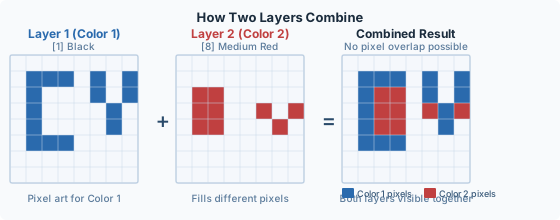
- 2-Color — Two independent layers, each with its own colour. Richer sprites that use both hardware sprite planes.
When you switch to 2-Color mode a brief tooltip appears near the layer rows reminding you that you can click a row label or press X to toggle between layers.
Pixel Exclusivity
This is the most important rule in 2-color mode: every pixel can only belong to one layer at a time. If you paint a pixel on Layer 2 that Layer 1 already occupies, it is automatically removed from Layer 1 and given to Layer 2. Pixels do not stack.
This directly mirrors how the ColecoVision hardware works — two sprites cannot both claim the same pixel position.
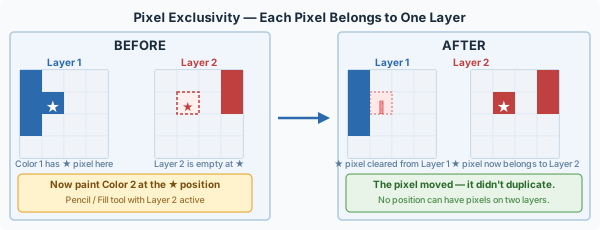
Important: This applies to the Pencil, Eraser, and Flood Fill tools. There is no way to have two colours at the same pixel — that would be physically impossible on the real hardware.
Color Conflict Rules
The TMS9918A groups similar colours into families. The tool prevents you from assigning two colours from the same family to your two layers, because they would look nearly identical and create confusion.
| Family | Members |
|---|---|
| Greens | [2] Medium Green, [3] Light Green, [12] Dark Green |
| Blues | [4] Dark Blue, [5] Light Blue |
| Reds | [6] Dark Red, [8] Medium Red, [9] Light Red |
| Yellows | [10] Dark Yellow, [11] Light Yellow |
When you view the palette with Color 1 active, Color 2's exact colour is greyed out. When Color 2 is active, Color 1's entire colour family is greyed out. Greyed swatches cannot be clicked.
If you change Color 1 to a colour whose family would conflict with the current Color 2, Color 2 is automatically bumped to the nearest safe colour.
Black [1], White [15], Gray [14], Cyan [7], and Magenta [13] are standalone — they have no family restrictions.
Drawing Tools
Pencil, Eraser and Fill
✏ Pencil P
Left-click and drag to paint pixels with the active layer's colour. The default tool.
⌫ Eraser E
Left-click and drag to erase pixels (set to transparent) on the active layer only.
⬛ Fill F
Flood-fills a connected region. In 2-color mode, asks whether the other layer should act as a fill boundary.
Mouse shortcut overrides
| Action | Effect |
|---|---|
| Right-click | Temporary eraser while held, regardless of active tool. Restores on release. |
| Middle-click | Temporary flood fill while held. Restores on release. |
Flood Fill boundary dialog
When you use Fill in 2-color mode and the other layer has pixels, a dialog appears:
"Use Color N as a fill boundary? Yes — fill stops at Color N's pixels. No — fill ignores the other color layer."
Choose Yes to keep the fill contained within the other layer's outline. Choose No to fill the entire connected region regardless.
Shape Tools
Click and drag on the canvas to draw a shape preview, then release to commit it. A translucent preview is shown while dragging.
Line
Draws a straight line using Bresenham's algorithm. Hold Shift to snap to 0°, 45°, or 90°.
Box
Draws a rectangle outline. Hold Shift to constrain to a perfect square.
Circle
Draws an ellipse outline. Hold Shift to constrain to a perfect circle.
Poly (N)
Draws a regular polygon inscribed in the bounding box. Press ↑/↓ to adjust sides (3–8). Side count shows in the button label.
All shape tools respect the active symmetry mode — symmetrical copies of the shape are also previewed and committed.
Undo & Redo
The tool records undo history once per stroke, not per pixel. Dragging across 200 cells is a single undo step.
- Undo: Ctrl+Z or the Undo button. Up to 20 steps.
- Redo: Ctrl+Y or Ctrl+Shift+Z or the Redo button.
- Any new drawing action clears the redo history.
Symmetry
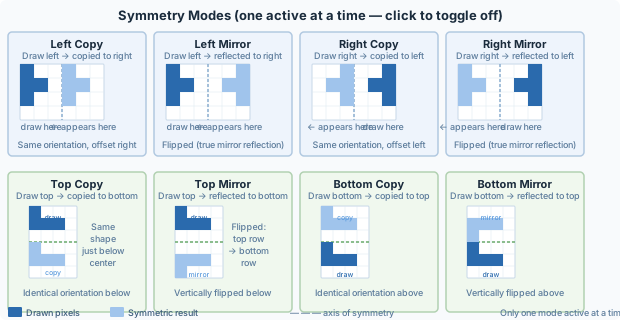
Symmetry lets you draw on one half of the canvas and have strokes automatically appear on the other half simultaneously. Only one mode can be active at a time — clicking an active mode button turns it off.
Horizontal symmetry (above the canvas)
| Button | Behaviour |
|---|---|
| Left ⧉ (Copy) | Draw on the left half — the same shape also appears on the right half, same orientation (not flipped). |
| Left ↔ (Mirror) | Draw on the left half — a horizontally flipped copy appears on the right half. |
| Right ⧉ (Copy) | Draw on the right half — copies to the left half, same orientation. |
| Right ↔ (Mirror) | Draw on the right half — a horizontally flipped copy appears on the left. |
Vertical symmetry (left of the canvas)
| Button | Behaviour |
|---|---|
| Top ⧉ (Copy) | Draw on the top half — copied to the bottom half, same orientation. |
| Top ↕ (Mirror) | Draw on the top half — a vertically flipped copy appears on the bottom. |
| Bottom ⧉ (Copy) | Draw on the bottom half — copied to the top, same orientation. |
| Bottom ↕ (Mirror) | Draw on the bottom half — a vertically flipped copy appears on the top. |
Copy vs Mirror: Use Mirror for true reflections (e.g. a bilaterally symmetric face). Use Copy when you want the same motif tiled to both halves without flipping (e.g. repeating studs).
Rotation, Flip & Invert
These buttons are on the right side of the canvas (the Rotation bar). They all operate on all layers simultaneously.
| Button | Effect |
|---|---|
| ↻ 90° | Rotate all layers 90° clockwise. |
| ↻ 45° | Rotate 45° clockwise (nearest-neighbour — some pixel accuracy loss). |
| ↺ 90° | Rotate all layers 90° counter-clockwise. |
| ↺ 45° | Rotate 45° counter-clockwise (nearest-neighbour). |
| ⇄ H | Flip all layers horizontally (left ↔ right). |
| ⇅ V | Flip all layers vertically (top ↔ bottom). |
| ◐ Invert | Toggle all pixels: painted cells become transparent and transparent cells become painted. In 2-color mode, the active layer wins any conflicts. |
Color swatches (top of the Rotation bar)
Each assigned colour has a swatch row with two controls:
- Click the colour swatch — switch to that layer.
- Click the pencil icon — open a floating mini colour picker to reassign the layer's colour. Forbidden colours are greyed out.
In 2-color mode an X hint appears at the top. Press X to quickly toggle between Color 1 and Color 2 without using the mouse.
Nudge Bar
The four arrow buttons shift pixels by one cell at a time. Keyboard arrow keys also work when the Last Object checkbox is active (see below).
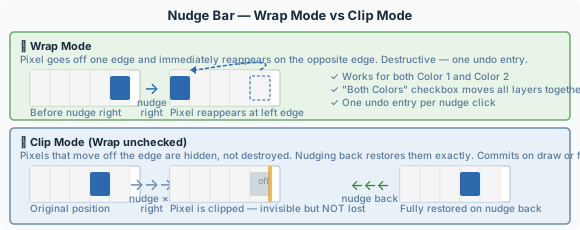
Wrap Mode (☑ Wrap)
Pixels that move off one edge immediately reappear on the opposite edge. This is a permanent, destructive change. Each nudge click creates one undo entry.
Clip Mode (☐ Wrap unchecked)
Pixels that move off an edge are hidden but not destroyed. The tool keeps a snapshot of the original positions. Nudging back in the opposite direction restores them exactly. The accumulated nudge is committed (made permanent) when you:
- Start drawing (mousedown on the canvas)
- Switch to a different frame
Both Colors (☑ Both Colors)
Only visible in 2-color mode. When checked, all nudge operations move both layers together. When unchecked, only the active layer is moved.
Last Object (☐ Last Object)
When checked, the nudge buttons (and keyboard arrow keys) move only the last painted stroke or shape — not the entire layer.
- Captured automatically when you finish a stroke or commit a shape.
- The checkbox auto-unchecks 5 seconds after the last arrow-key move.
- Pixel exclusivity is maintained — moving an object onto another layer's pixels clears those pixels from the other layer.
Draw a shape, immediately check Last Object, then use arrow keys to nudge it into position. Uncheck when done.
Animation Frames
The Animation / Frames panel sits below the nudge bar and is expanded by default. Click the chevron (›) at the left of the panel header to collapse or expand it.
Managing frames
- + Add — Add a blank frame. Maximum 10 frames.
- ← → buttons above each thumbnail — Reorder frames.
- ⧉ Clone button on a thumbnail — Duplicate that frame.
- ✕ Delete button — Remove a frame. Only visible when more than one frame exists.
The currently active frame has a highlighted border. Click any thumbnail to switch to it.
Output labels for multi-frame projects include the frame number: sprite_f1_color1:, sprite_f2_color1:, etc.
Animation Playback
The animation preview canvas (80×80 px) and playback controls are on the right side of the Animation panel.
Playback controls
| Control | Effect |
|---|---|
| ▶ Play | Start animation playback. Disabled when fewer than 2 frames exist. |
| ■ Stop | Stop playback. |
| ↺ Loop | Frames play in order and repeat. Disabled with fewer than 2 frames. |
| ⇆ Ping Pong | Frames play forward then backward. Disabled with fewer than 3 frames. Auto-reverts to Loop if frames drop below 3. |
Speed
Use the − and + buttons beside the speed display to step through available frame rates: 1, 2, 3, 4, 5, 6, 10, 12, 15, 20, 30, 60 fps. The default is 4 fps (WAIT 15). The display shows the fps value and its equivalent CVBasic WAIT value.
Background colour
The row of small swatches below the playback buttons sets the temporary preview background colour. This is cosmetic only — it does not affect the sprite data. Transparent (index 0) shows a checkerboard. This setting also controls the tint of the Trace layer when in colour mode.
Bkgd / Trace Layer
The bottom row in the Layers panel is the Trace (reference image) layer. It is for tracing reference artwork — it does not contribute to exported sprite data.
Modes
- Color mode — Displays a flat-colour tint over the canvas. Click the colour swatch to choose a tint. Useful as a temporary background colour while drawing.
- Image mode — Shows a loaded PNG image. Use the ⇄ toggle button (visible when an image is loaded and the layer is visible) to switch between colour and image mode.
Importing a reference image
- Click ⬆ Import PNG and select a PNG file.
- The image is loaded at its original size and scaled to the canvas area.
- If the image is not 16×16 pixels, a warning alerts you that it will be scaled.
- Use the Opacity slider to make it transparent enough to draw over.
- The 👁 visibility button toggles the layer on/off.
Note: If the tint colour matches one of your sprite colours, a warning "⚠ Same color as Color N — trace may be invisible" appears in the status area of that row.
Auto Trace
The ⚡ Auto Trace button becomes active after loading a PNG. It analyses the image and automatically generates a 2-color sprite approximation:
- Switches the project to 2-Color mode.
- Pixels with alpha below 25% are excluded.
- If Black [1] or White [15] account for more than 25% of the remaining pixels, you are asked whether to treat them as transparent.
- Remaining pixels are split into dark and light groups by median luminance.
- The mean colour of each group is snapped to the nearest TMS9918A palette entry.
- Each pixel is assigned to whichever of the two resulting palette colours it is closer to.
Auto Trace gives you a starting point — use it as a quick rough draft and then refine manually.
Output Panel
The Output Panel at the bottom of the page shows a live preview of the exported code, updated instantly as you draw. Select a format using the tab buttons, then click 📋 Copy to copy to the clipboard (the button briefly shows "Copied!").
The active output format is also reflected in the Output Mode tabs at the very top of the page, and determines the format used by the Save button and the per-layer Import/Export buttons in the Layers panel.
CVBasic Format (.bas)
CVBasic is a BASIC dialect for the ColecoVision. The exported code provides sprite data blocks and placement statements ready to paste into your game.
BITMAP block format
Each pixel row is one BITMAP statement. X = opaque pixel, . = transparent. In 16×16 mode each row is 16 characters; in 8×8 mode each row is 8 characters and there are 8 rows total.
sprite_color1:
    BITMAP "XXXXXXXXXXXXXXXX"
    BITMAP "X..............X"
    BITMAP "X..............X"
    BITMAP "XXXXXXXXXXXXXXXX"
    '  ... 12 more rows ...

DEFINE SPRITE 0,1,sprite_color1
SPRITE 0,100,100,0*4,1
Multi-frame output
With 2+ frames, each frame gets its own labelled section and an animation metadata comment is added at the top:
' animFPSIndex: 3  (4 fps, WAIT 15)
' animMode: loop

' ═══ Frame 1 ═══
sprite_f1_color1:
    BITMAP "..."
    '  ...

' ═══ Frame 2 ═══
sprite_f2_color1:
    BITMAP "..."
ASM Format (.asm)
Exports a raw data table compatible with ColecoVision assembly routines. Each sprite layer is encoded as decimal bytes matching the TMS9918A hardware memory layout.
Byte layout — 16×16 mode
32 bytes per layer, in four groups of 8 (the TMS9918A 4-quadrant layout):
- Rows 0–7, left half (columns 0–7)
- Rows 8–15, left half
- Rows 0–7, right half (columns 8–15)
- Rows 8–15, right half
Each byte encodes 8 pixels as a bitmask (most-significant bit = leftmost pixel).
Byte layout — 8×8 mode
8 bytes per layer — one byte per row, rows 0–7 in order. No quadrant split is needed.
; sprite_f1_color1  — Color 1: [1] Black
sprite_f1_color1:
   db 255,129,129,129,129,129,129,255
   db 255,129,129,129,129,129,129,255
   db 255,129,129,129,129,129,129,255
   db 255,129,129,129,129,129,129,255
The import parser also accepts the legacy hex-pair format (.db 0xAA,0xBB) from older exports.
JSON Format (.json)
The JSON format is the full project format. It stores all sprite data, colour assignments, animation settings, and all frames. Use it to save and reload your work.
{
  "spriteName": "player",
  "numLayers": 2,
  "layerColors": [1, 8],
  "layerColorNames": ["Black", "Medium Red"],
  "animFPSIndex": 3,
  "animMode": "loop",
  "frames": [
    {
      "frameIndex": 0,
      "layer1": [[0,0,...], ...],
      "layer2": [[0,0,...], ...]
    }
  ]
}
Each cell in the grid arrays holds a palette index (0 = transparent).
Save & Load
Save (💾 Save button)
Downloads a file in the currently active output format:
| Active Tab | File Type | Contents |
|---|---|---|
| CVBasic | .bas | CVBasic BITMAP source code |
| ASM | .asm | Assembly data blocks |
| JSON | .json | Full project (all frames, all settings) |
To save your full project for later editing, always use the JSON tab. CVBasic and ASM contain all pixel data but JSON is the only format that preserves animation speed and all metadata perfectly.
Load (📂 Load button)
Opens a file picker. Accepted file types:
.json— Restores the full project..bas— Imports CVBasic source. Reads BITMAP blocks, frame labels, and SPRITE colour statements..asm— Imports assembly data. Readsdbdecimal rows and frame label naming. Accepts both decimal and legacy hex-pair formats.
New (⊞ New button)
Clears all frames and resets the project to a single blank frame. A confirmation dialog prevents accidental data loss.
Per-layer Import / Export
Each layer row has its own ⬆ Import and ⬇ Export buttons that work in the active output format. Use these to exchange data for a single layer/frame rather than the full project.
Keyboard Shortcuts
| Key | Action |
|---|---|
| P | Select Pencil tool |
| E | Select Eraser tool |
| F | Select Flood Fill tool |
| X | Toggle between Color 1 and Color 2 (2-color mode only) |
| Ctrl+Z | Undo |
| Ctrl+Y | Redo |
| Ctrl+Shift+Z | Redo (alternative) |
| ↑ / ↓ | Adjust polygon sides when Polygon tool is active (3–8) |
| ← ↑ ↓ → | Move Last Object (when Last Object checkbox is checked) |
| Shift + drag | Constrain Box/Circle to square/circle; snap Line to 0°/45°/90° |
| Right-click (canvas) | Temporary Eraser while held |
| Middle-click (canvas) | Temporary Flood Fill while held |
Keyboard shortcuts are disabled when a text input or textarea is focused (e.g. the Sprite Name field or an Import modal).
CV Sprite Tool — ColecoVision Edition · Manual updated 2026-03-28